Dashboard Overview
Learn your way around the SiteWhiz interface.
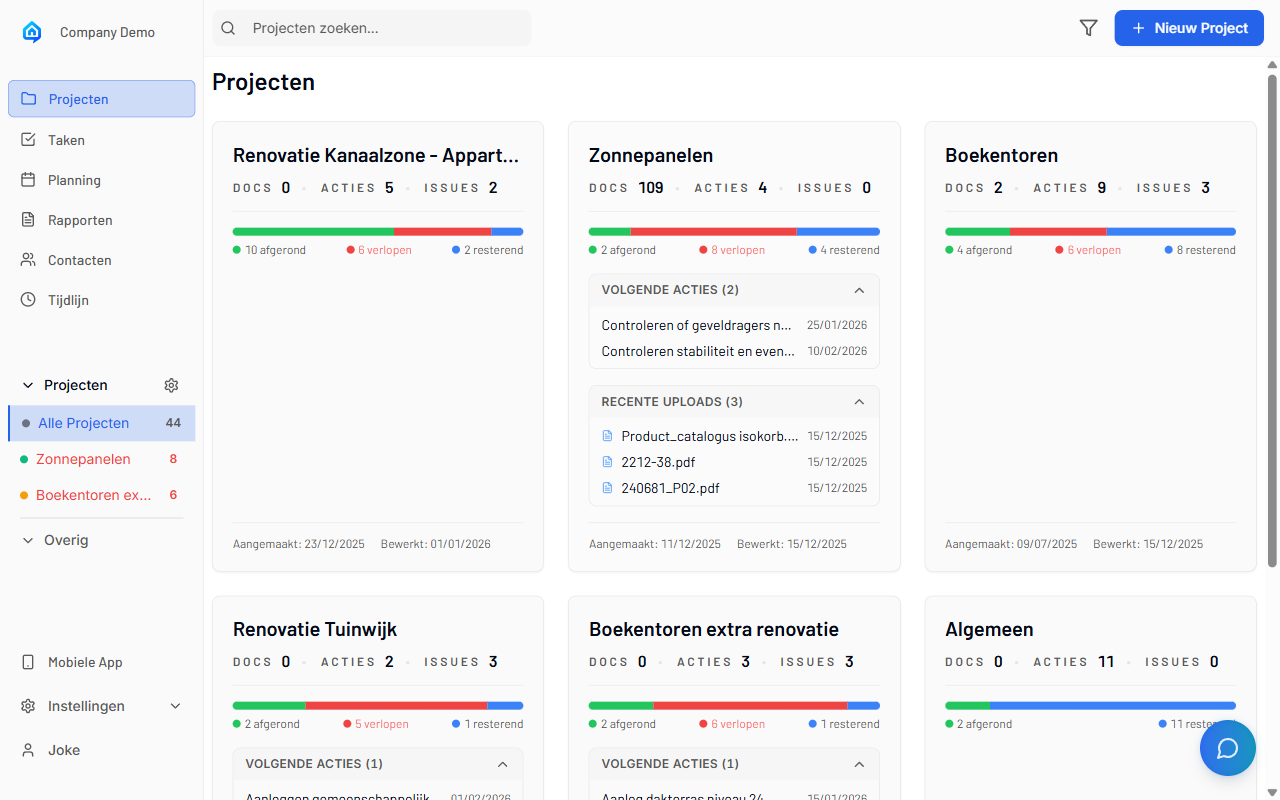
Main Navigation
Admin App Layout
The admin app has these main areas:
| Area | Location | Purpose |
|---|---|---|
| Sidebar | Left | Project list and navigation |
| Main Content | Center | Active page content |
| Detail Panel | Right | Item/document details |
| Chat Button | Bottom-right | AI Assistant access |
Sidebar Navigation
The left sidebar provides:
- Project List - All your projects
- Quick Actions - Create project, invite users
- Settings - Account and preferences
- Help - Documentation links
Projects View
Project List
When you log in, you see your projects:
- Project name and status
- Recent activity indicator
- Quick access to project pages
- Search and filter options
Project Pages
Each project contains:
| Page | Purpose |
|---|---|
| Overview | Project summary and stats |
| Items | Actions, issues, questions |
| Documents | PDF viewer and file list |
| Reports | Generated reports |
| Settings | Project configuration |
Items Page
List View
The items page shows all project items:
- Filter by type (Action, Decision, Issue, Question)
- Filter by status (Open, In Progress, Closed)
- Sort by date, priority, or assignee
- Search through item titles
Detail Panel
Click an item to see details:
- Full description
- Attachments and evidence
- Activity history
- Edit and status controls
Documents Page
File Browser
Browse all project documents:
- List view with metadata
- Search by filename
- Filter by type or date
- Cloud sync status
PDF Viewer
Click a document to open:
- Full-page viewing
- Zoom and navigation
- Text search
- Download option
AI Assistant
Accessing the Chat
Click the floating chat button (bottom-right) to open:
- Text input for questions
- Voice input option
- Suggestion cards
- Response history
Using the Assistant
Type or speak your question:
- Ask about document content
- Find specific items
- Get project summaries
- Search across all data
Mobile App Layout
Bottom Navigation
The mobile app uses bottom tabs:
| Tab | Function |
|---|---|
| Items | View and manage items |
| Documents | Browse project files |
| Ask | AI Assistant |
| Plans | Floor plan viewer |
| Reports | View reports |
Top Bar
Each page has:
- Project selector dropdown
- Page title
- Action buttons (refresh, add)
Key Actions
Creating Items
- Admin: Click "+ New Item" button
- Mobile: Tap "+" or use voice capture
Finding Information
- Search: Use the search bar on any page
- AI: Ask the AI Assistant
- Browse: Navigate through lists
Getting Help
- Documentation: Click help icon
- AI Assistant: Ask for guidance
- Support: Contact via email
Keyboard Shortcuts
| Shortcut | Action |
|---|---|
| / | Focus search |
| Esc | Close panel |
| ? | Show shortcuts |
Related Topics
- Quick Tour - Guided walkthrough
- First Login - Getting started
- Projects - Managing projects