First Login
Log in to SiteWhiz for the first time.
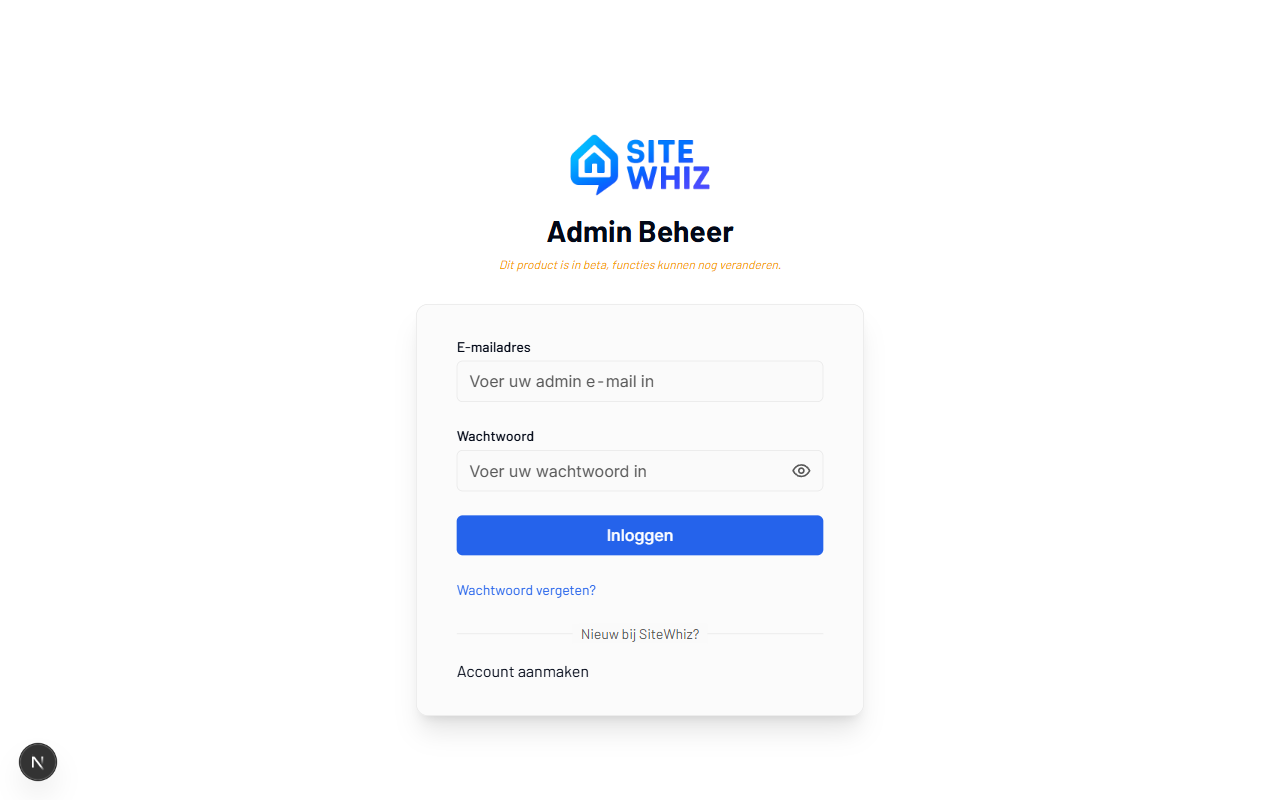
Overview
There are two ways to access SiteWhiz:
- Invitation - You received an email invitation from your organization
- Self-signup - You're creating a new organization account
Login via Invitation
Step 1: Open the Invitation Email
-
Check your inbox for an email from SiteWhiz.
-
Click the Accept Invitation button in the email.
-
You'll be taken to the SiteWhiz login page.
Link Expiration
Invitation links expire after 7 days. If your link has expired, contact your organization administrator for a new invitation.
Step 2: Set Your Password
If this is your first time logging in:
-
Enter your email address (the one where you received the invitation).
-
Click Forgot Password to set your initial password.
-
Check your email for the password reset link.
-
Create a strong password (minimum 8 characters).
Step 3: Log In
-
Go to your organization's SiteWhiz URL or app.sitewhiz.eu.
-
Enter your email address.
-
Enter your password.
-
Click Login.
Self-Signup (New Organizations)
Step 1: Create Account
-
Go to sitewhiz.eu/signup.
-
Enter your email address.
-
Enter a password (minimum 8 characters).
-
Enter your company name.
-
Enter your full name.
-
Click Create Account.
Step 2: Verify Email
-
Check your inbox for a verification email.
-
Click the Verify Email link.
-
You'll be redirected to SiteWhiz.
Step 3: Complete Onboarding
After verification, you'll be guided through:
- Company Setup - Configure your organization settings
- Profile Setup - Complete your personal profile
- Guided Tour - Learn the main features
Mobile App Login
First Time Setup
-
Install the SiteWhiz mobile app (see Mobile App Installation).
-
Open the app and tap Login.
-
Enter your email and password.
-
Tap Login.
Stay Logged In
The mobile app keeps you logged in for convenience. You'll only need to log in again if:
- You explicitly log out
- Your password is changed
- Your session expires (after 30 days of inactivity)
Troubleshooting
Can't Find the Invitation Email?
- Check your spam/junk folder
- Search for emails from
noreply@sitewhiz.eu - Contact your organization administrator for a new invitation
Password Not Working?
- Ensure you're using the correct email address
- Try Forgot Password to reset
- Check for caps lock
Getting "Invalid Credentials" Error?
- Verify your email address is spelled correctly
- Use Forgot Password to reset your password
- Contact support if the problem persists
Next Steps
After logging in:
- Dashboard Overview - Learn your way around
- Quick Tour - Complete the guided tour
- Create a Project - Start your first project