Editing Items
Update item details, status, and attachments.
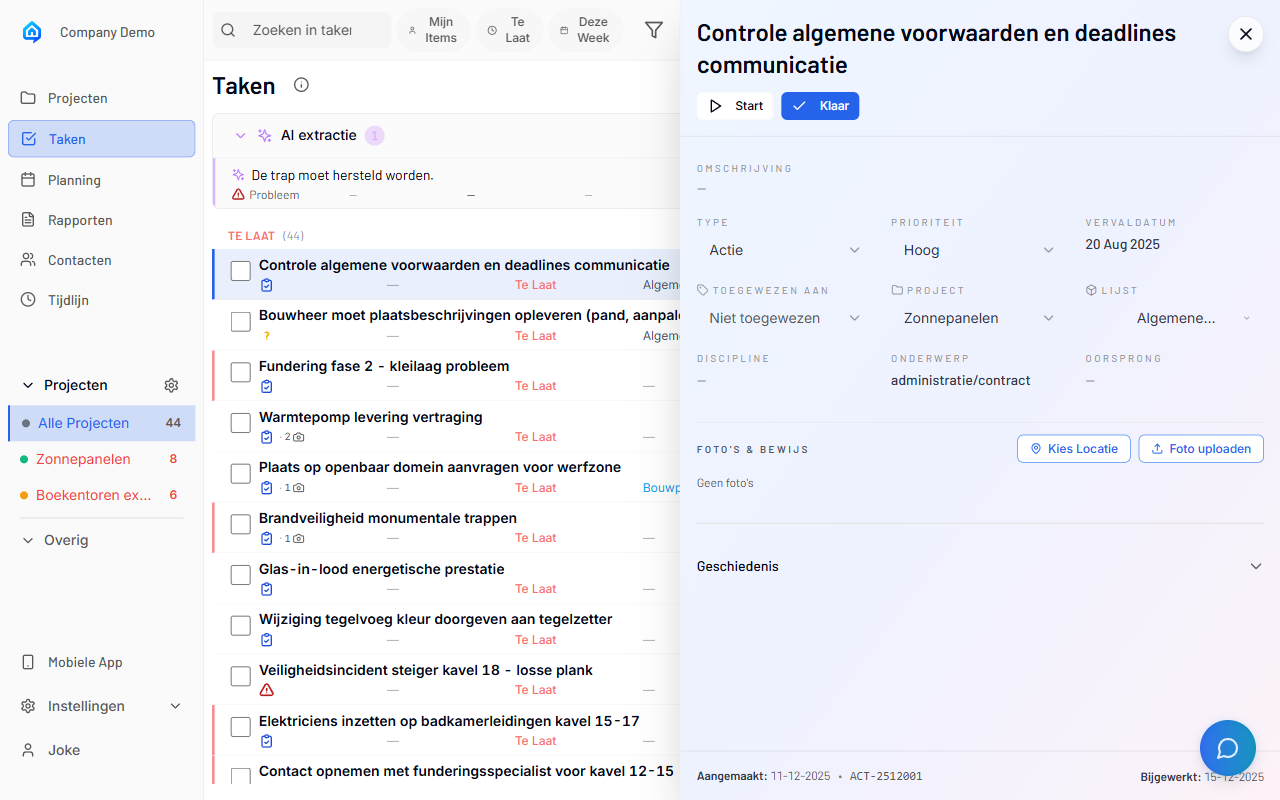
Overview
After creating an item, you can edit:
- Title and description
- Type and priority
- Status and assignee
- Due dates
- Attachments and evidence
- Location on plans
Opening an Item for Editing
Admin App
-
Navigate to Items in your project.
-
Click on the item you want to edit.
-
The detail panel opens on the right.
-
Click Edit to enable editing mode.
Mobile App
-
Go to Items tab.
-
Tap on the item.
-
Tap the Edit button (pencil icon).
Editing Item Details
Title and Description
-
Click on the title field.
-
Type the new title.
-
Click on the description field.
-
Update the description text.
-
Click Save.
Item Type
Change the item type:
-
Click the type dropdown.
-
Select the new type:
- Action
- Decision
- Issue
-
Question
-
Click Save.
Type Changes
Changing the type updates the item's icon and may affect how it appears in filtered views.
Changing Status
Available Statuses
| Status | Meaning |
|---|---|
| Open | Not yet started |
| In Progress | Currently being worked on |
| Closed | Completed or resolved |
Updating Status
-
Open the item.
-
Click the status dropdown or badge.
-
Select the new status.
-
Add a comment explaining the change (optional).
-
Status updates immediately.
Assigning Items
Setting an Assignee
-
Open the item.
-
Click the Assignee field.
-
Select a team member from the dropdown.
-
The assignee is notified (if notifications are enabled).
Reassigning
-
Click the current assignee.
-
Select a different team member.
-
Add a note about the reassignment (recommended).
Removing Assignment
-
Click the assignee field.
-
Select "Unassigned" or clear the selection.
Due Dates
Setting a Due Date
-
Open the item.
-
Click the Due Date field.
-
Select a date from the calendar.
-
The due date appears on the item.
Overdue Items
Items past their due date:
- Display a warning indicator
- Appear in "Overdue" filters
- Show in priority views
Removing a Due Date
-
Click the due date field.
-
Click Clear or delete the date.
Adding Evidence
Photos
-
Open the item.
-
Click Add Photo or the camera icon.
-
Take a new photo or select from gallery.
-
Photo is uploaded and attached.
Documents
-
Open the item.
-
Click Attach Document.
-
Select a document from the project files.
-
Or upload a new document.
Viewing Attachments
All attachments appear in the Evidence section:
- Click to view full size
- Download for offline use
- Remove if no longer needed
Location on Plans
Pinning to a Plan
-
Open the item.
-
Click Set Location or the map icon.
-
Select a floor plan.
-
Tap the location on the plan.
-
Location is saved with the item.
Viewing Location
Items with locations show:
- A location indicator on the item
- The item when viewing the plan
- Location in exported reports
Activity History
Viewing History
Each item tracks changes:
- Who made changes
- When changes occurred
- What was modified
Adding Comments
-
Scroll to the Activity section.
-
Type in the comment field.
-
Click Add Comment.
-
Comments appear in the history.
Bulk Editing
Selecting Multiple Items
-
Check the boxes next to items.
-
Or click Select All.
Bulk Actions
With items selected:
- Change Status - Set status for all
- Assign - Assign all to one person
- Set Due Date - Apply same due date
- Delete - Remove all selected
Troubleshooting
Can't Edit Item
If you can't edit an item:
- Check your permissions
- Verify the item isn't locked
- Refresh the page
- Contact the project admin
Changes Not Saving
If changes don't save:
- Check your internet connection
- Look for error messages
- Try refreshing and editing again
- Report persistent issues to support
Related Topics
- Creating Items - Add new items
- Viewing Items - Browse items
- Item Workflow - Status lifecycle