Viewing Items
Browse and filter your project items.
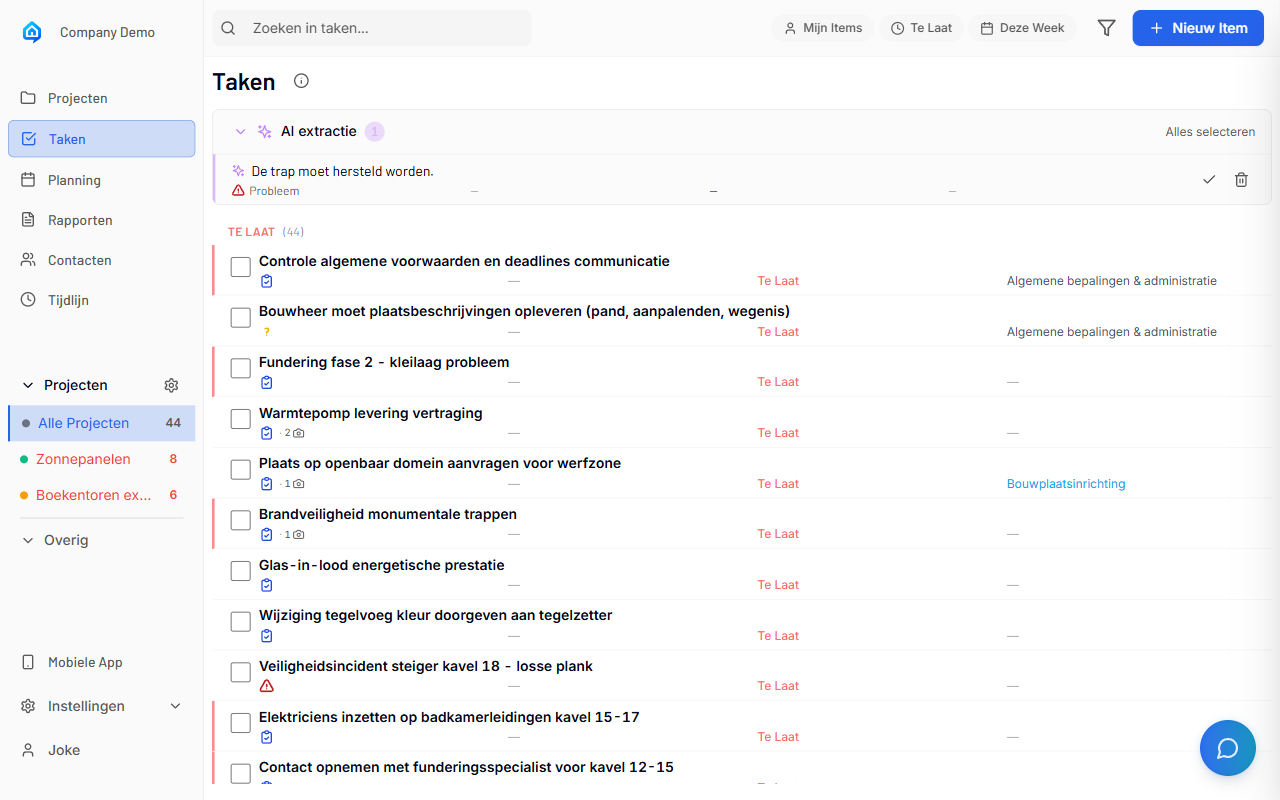
Overview
The Items page shows all items in your project. You can:
- View items in a list or grouped by container/location
- Filter by type, status, or assignee
- Sort by date or location
- Search through item titles and descriptions
- Open item details in a side panel
Navigating to Items
Admin App
-
Select a project from the sidebar.
-
Click Items in the project navigation.
-
The items list shows all items for the selected project.
Mobile App
-
Open the SiteWhiz app.
-
Select your project using the project selector.
-
Tap Items in the bottom navigation bar.
The Items List
List View
Items are displayed in a list with key information:
| Column | Description |
|---|---|
| Type | Icon indicating Action, Decision, Issue, or Question |
| Title | Brief description of the item |
| Status | Current state (Open, In Progress, Closed) |
| Assignee | Team member responsible |
| Due Date | Deadline (if set) |
| Evidence | Photo/document attachment indicator |
Grouped View
Switch between viewing modes:
- Time-based - Items grouped by when they were created
- Container-based - Items grouped by location or container
Filtering Items
By Type
Filter to show only specific item types:
-
Click the Filter button (funnel icon).
-
Select the types you want to see:
- Action - Tasks to complete
- Decision - Choices to make
- Issue - Problems to resolve
-
Question - Information requests
-
Click Apply to filter the list.
By Status
Filter by item status:
- Open - Items not yet started
- In Progress - Items being worked on
- Closed - Completed items
By Assignee
Filter to see items assigned to specific team members:
-
Click the Assignee filter.
-
Select one or more team members.
-
The list shows only items assigned to those people.
Sorting Items
Change the order items appear:
-
Click the Sort dropdown.
-
Choose your preferred sort order:
- Newest First - Most recently created at top
- Oldest First - Oldest items at top
- Due Date - Upcoming deadlines first
- Priority - High priority items first
Searching Items
Find specific items by searching:
-
Click the Search field (or magnifying glass icon).
-
Type your search terms.
-
The list filters to show matching items.
Search looks through:
- Item titles
- Item descriptions
- Item IDs
Search Tips
Use specific keywords from the item content. For example, search "leakage" to find all items mentioning leaks.
Opening Item Details
Admin App
-
Click on any item in the list.
-
A detail panel opens on the right side.
-
View full item information including:
- Complete description
- Attached evidence (photos, documents)
- Activity history
- Related items
Mobile App
-
Tap on any item in the list.
-
The item detail page opens full-screen.
-
Swipe or use arrows to navigate between items.
Item Status Indicators
Visual indicators show item state at a glance:
| Indicator | Meaning |
|---|---|
| Open - Not started | |
| In Progress - Being worked on | |
| Closed - Completed | |
| Overdue - Past due date | |
| Has attachments | |
| Has location on plan |
Bulk Operations
Select multiple items for batch actions:
Admin App
-
Click the checkbox next to items you want to select.
-
Or click Select All to select all visible items.
-
Choose an action from the toolbar:
- Change Status - Update status of all selected
- Assign - Assign to a team member
- Export - Generate a report
- Delete - Remove selected items
Offline Access (Mobile)
Items are available offline on mobile:
- Previously viewed items remain accessible
- New items are saved locally
- Changes sync automatically when connected
Offline Indicator
A banner shows when you're offline and have unsynced changes.
Troubleshooting
Items Not Loading
If items don't appear:
- Refresh the page
- Check you have a project selected
- Verify your internet connection
- Clear filters to show all items
Search Returns No Results
If search doesn't find expected items:
- Try fewer, more general keywords
- Check for typos in your search
- Clear filters that might be hiding results
- Verify the item exists in the current project
Related Topics
- Creating Items - Add new items
- Editing Items - Update item details
- Item Workflow - Understanding status changes
- Reports - Generate reports from items