Installation
Install the SiteWhiz mobile app on your device.
Overview
SiteWhiz is a Progressive Web App (PWA). This means:
- No app store download required
- Works directly from your browser
- Updates automatically
- Works offline after first load
iOS Installation (iPhone/iPad)
Step 1: Open Safari
-
Open Safari on your iOS device.
-
Navigate to the SiteWhiz mobile URL provided by your administrator.
Safari Required
You must use Safari for PWA installation on iOS. Chrome and other browsers don't support iOS PWA installation.
Step 2: Add to Home Screen
-
Tap the Share button (square with arrow pointing up).
-
Scroll down in the share menu.
-
Tap Add to Home Screen.
-
Optionally customize the app name.
-
Tap Add in the top-right corner.
Step 3: Launch the App
-
Find the SiteWhiz icon on your home screen.
-
Tap to open the app.
-
Log in with your credentials.
Android Installation
Step 1: Open Chrome
-
Open Chrome on your Android device.
-
Navigate to the SiteWhiz mobile URL.
Step 2: Install the App
-
Tap the menu button (three dots in top-right).
-
Tap Add to Home screen or Install app.
-
Confirm by tapping Add or Install.
Step 3: Launch the App
-
Find the SiteWhiz icon on your home screen or app drawer.
-
Tap to open the app.
-
Log in with your credentials.
First Launch
Login
-
Enter your email address.
-
Enter your password.
-
Tap Login.
Project Selection
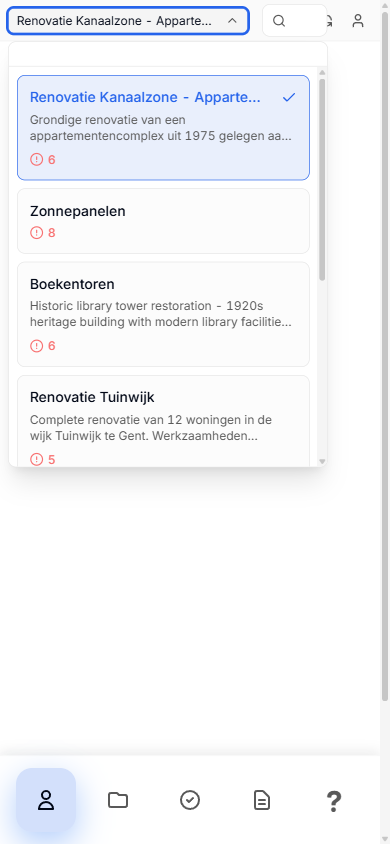
-
After login, select your project.
-
The project selector appears at the top of each page.
-
You can switch projects anytime.
Permissions
The app may request:
| Permission | Purpose |
|---|---|
| Camera | Take photos for evidence |
| Microphone | Voice capture and AI queries |
| Location | (Optional) Geo-tag photos |
| Notifications | Receive updates |
Grant permissions when prompted for full functionality.
Updating the App
PWAs update automatically:
- Updates download in the background
- New version activates on next launch
- No manual update required
To force an update:
-
Close the app completely.
-
Reopen the app.
-
Pull down to refresh on the main screen.
Removing the App
iOS
-
Press and hold the SiteWhiz icon.
-
Tap Remove App.
-
Confirm removal.
Android
-
Press and hold the SiteWhiz icon.
-
Drag to Uninstall or tap the X.
-
Confirm removal.
Device Requirements
Minimum Requirements
| Platform | Version |
|---|---|
| iOS | 14.0 or later |
| Android | 10.0 or later |
Recommended
- Modern smartphone (2020 or newer)
- Stable internet connection for sync
- Camera for photo evidence
- Microphone for voice capture
Troubleshooting
Can't Find "Add to Home Screen"
iOS: Make sure you're using Safari, not Chrome or another browser.
Android: Try clearing Chrome cache or using a different browser.
App Not Installing
-
Check your device meets minimum requirements.
-
Ensure you have sufficient storage space.
-
Try closing and reopening the browser.
App Won't Open
-
Restart your device.
-
Remove and reinstall the app.
-
Clear browser cache before reinstalling.
Related Topics
- Voice Capture - Record with voice
- Photo Capture - Take photos
- Offline Mode - Work without internet