Photo Capture
Take and attach photos as evidence.
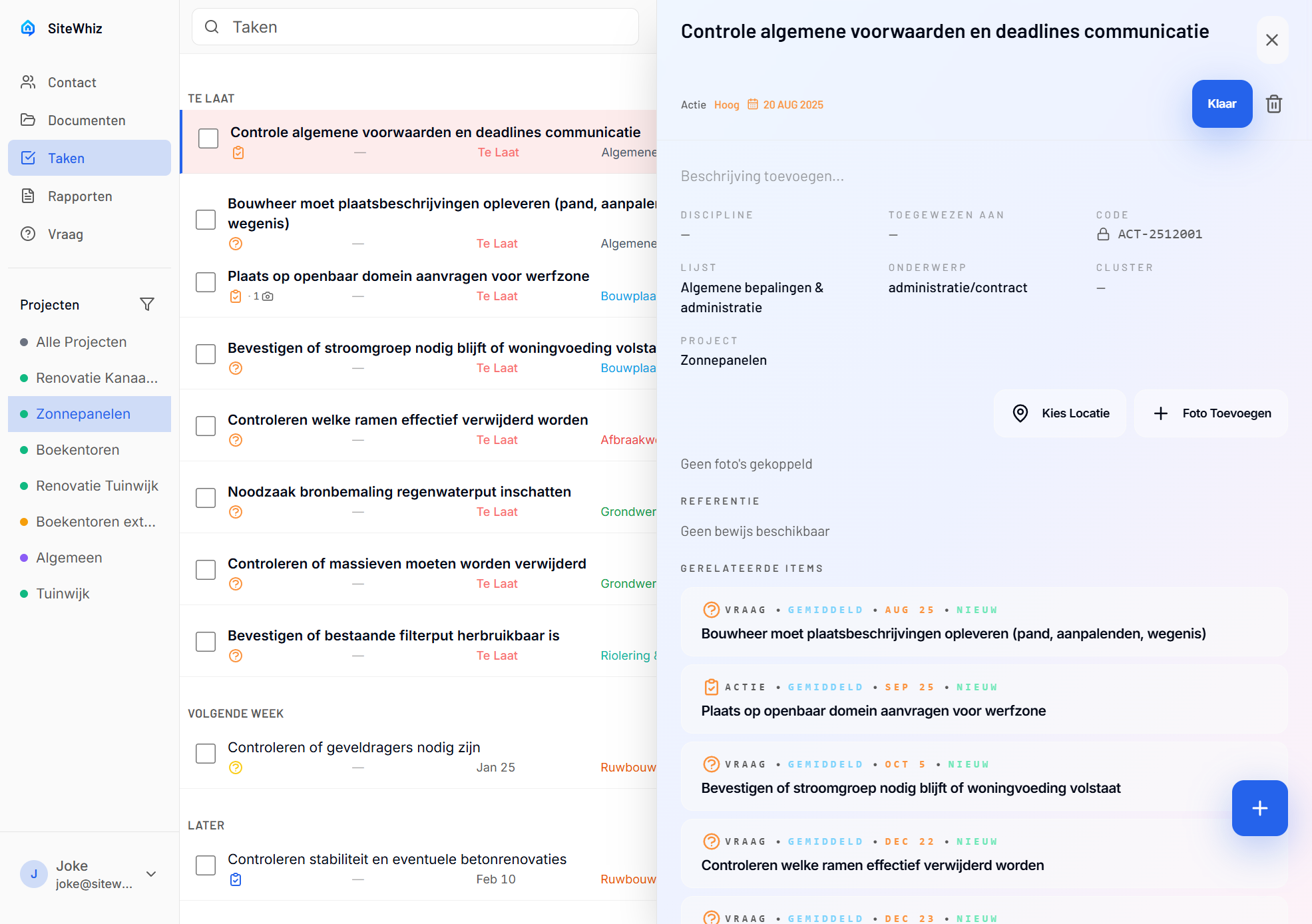
Overview
Photos provide visual evidence for items:
- Document issues with images
- Attach multiple photos per item
- Photos sync automatically
- Available offline after capture
Taking Photos
From an Item
-
Open or create an item.
-
Tap Add Photo or the camera icon.
-
Take a photo or choose from gallery.
-
Photo attaches to the item.
Quick Capture
-
Tap the camera button on Items page.
-
Take the photo.
-
Create a new item with the photo attached.
Camera Controls
Taking the Shot
- Tap screen to focus
- Tap shutter button to capture
- Pinch to zoom (use sparingly)
Flash Options
| Setting | Use When |
|---|---|
| Auto | Most situations |
| On | Dark areas, indoors |
| Off | Reflective surfaces |
Camera Switch
Tap the switch icon to use:
- Back camera (recommended for evidence)
- Front camera (rarely needed)
Photo Quality Tips
Composition
- Fill frame with the subject
- Show context/surroundings
- Use landscape orientation for wide areas
- Include reference objects for scale
Lighting
- Use natural light when possible
- Avoid shooting into bright light
- Use flash in dark areas
- Move to better lighting if needed
Focus
- Tap to focus on key area
- Hold steady while capturing
- Take multiple shots if unsure
- Check photo clarity before leaving area
Managing Photos
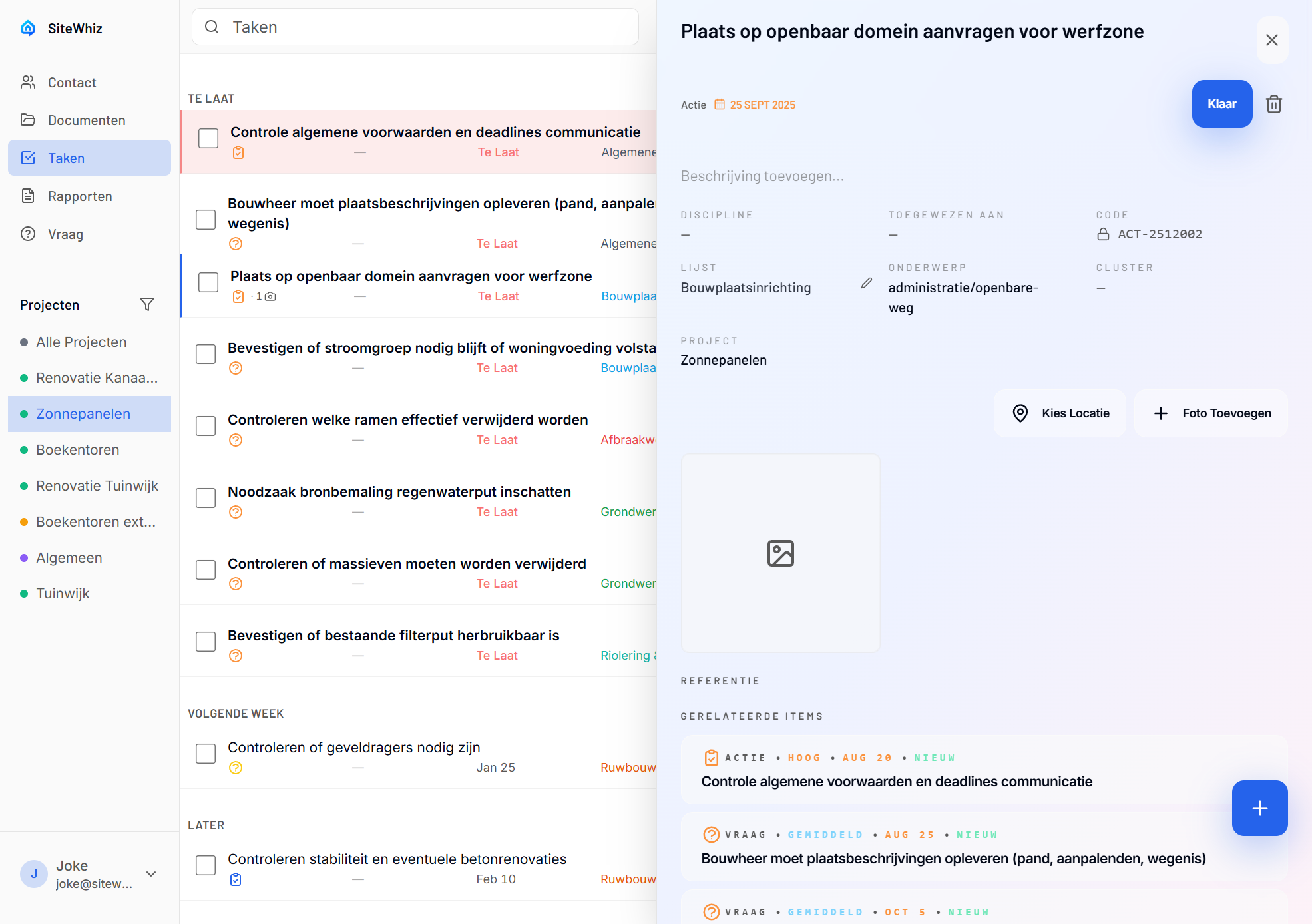
Viewing Attachments
-
Open the item.
-
Scroll to the Evidence section.
-
Tap a photo to view full size.
Deleting Photos
-
Open the photo full size.
-
Tap the delete icon.
-
Confirm removal.
Multiple Photos
Add multiple photos to one item:
-
Tap Add Photo again.
-
Each photo appears in the Evidence section.
-
No limit on photos per item.
Gallery Selection
Choosing Existing Photos
-
Tap Add Photo.
-
Select Choose from Gallery.
-
Select one or more photos.
-
Photos attach to the item.
Recent Photos
The gallery shows recent photos first for quick selection.
Photo Sync
Automatic Upload
Photos upload automatically when:
- You have internet connection
- App is open
- Background sync is enabled
Sync Status
| Icon | Status |
|---|---|
| Uploading | |
| Uploaded | |
| Pending (offline) |
Offline Photos
Photos taken offline:
- Save locally on device
- Upload when connection returns
- Show pending indicator
Photo Privacy
Who Can See Photos
Photos are visible to:
- All project team members
- Anyone with project access
- Included in reports
No Public Access
Photos are never publicly accessible without authentication.
Troubleshooting
Camera Not Working
-
Check camera permission in device settings.
-
Close and reopen the app.
-
Restart the device if needed.
Photos Not Uploading
-
Check internet connection.
-
Ensure Wi-Fi or cellular is enabled.
-
Photos will upload when connection restores.
Blurry Photos
-
Hold phone steady.
-
Tap to focus before shooting.
-
Clean camera lens.
-
Ensure adequate lighting.
Storage Full
If device storage is full:
-
Delete unneeded apps or files.
-
Previously uploaded photos can be removed from device.
-
Keep minimum 500MB free space.
Related Topics
- Voice Capture - Record by speaking
- Sessions - Manage recording sessions
- Items - Managing items