Voice Capture
Create items by speaking naturally.
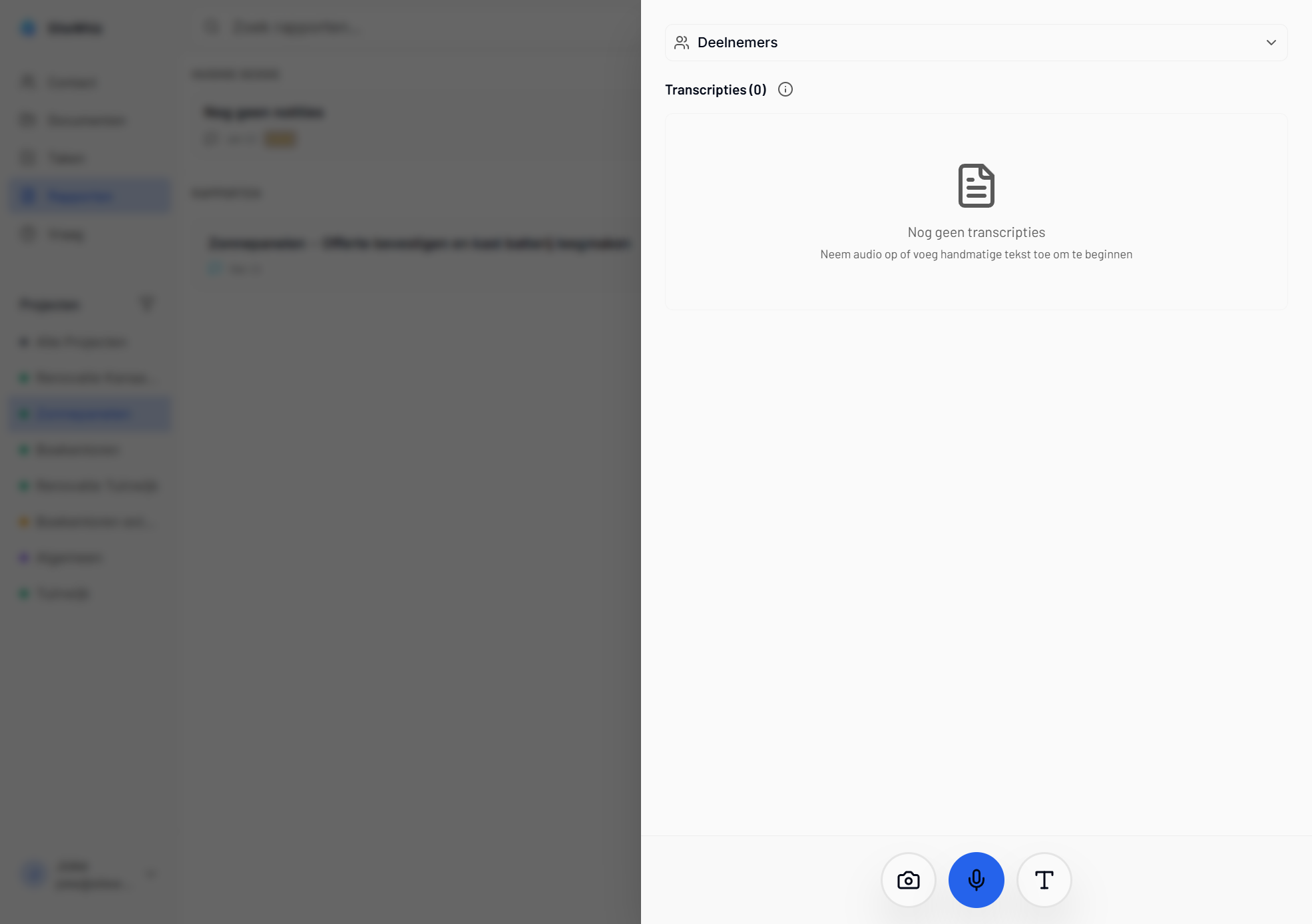
Overview
Voice capture lets you create items hands-free:
- Speak your observations naturally
- AI extracts title, type, and details
- Review and save with one tap
- Works in noisy environments
Starting Voice Capture
Quick Access
-
Go to Reports and tap + (New report).
-
In the session panel, tap the microphone button.
-
Recording starts automatically.
Recording Indicator
When recording:
- Red indicator pulses
- Timer shows duration
- Waveform shows audio level
Speaking Effectively
Natural Language
Speak as you would describe the issue to a colleague:
"There's a water leak near the bathroom on the second floor. The tiles are lifting and need to be replaced."
Include Key Details
For best results, mention:
- What: The issue or action
- Where: Location in the building
- Who: Responsible party (if known)
- When: Deadlines or timing
Example Phrases
| Type | Example |
|---|---|
| Action | "The electrician needs to install three more outlets in the kitchen" |
| Issue | "There's a crack in the foundation wall near the entrance" |
| Decision | "We need to decide between marble or granite countertops" |
| Question | "What color paint did the client choose for the bedroom?" |
After Recording
AI Processing
-
Tap Stop when finished speaking.
-
AI processes your recording (2-5 seconds).
-
Suggested item appears for review.
Review and Edit
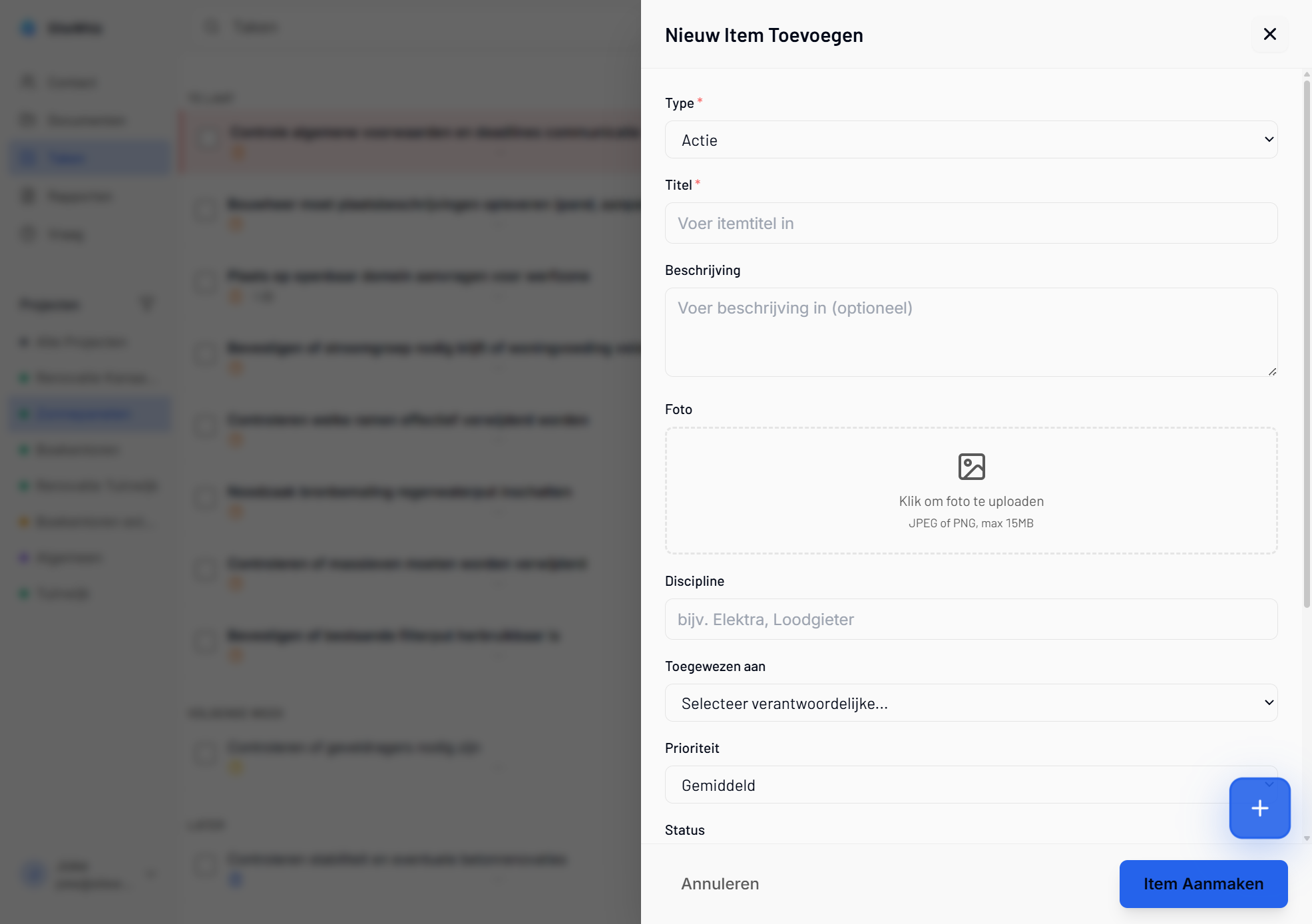
The AI suggests:
- Type: Action, Issue, Decision, or Question
- Title: Brief summary
- Description: Full details
Edit any field before saving:
-
Tap on a field to modify.
-
Correct any misunderstandings.
-
Add additional details.
Save or Discard
- Tap Save to create the item.
- Tap Discard to cancel.
- Tap Record Again for a new recording.
Tips for Clear Recording
Environment
- Find a relatively quiet spot
- Avoid wind or heavy machinery noise
- Hold phone 6-12 inches from mouth
Speaking
- Speak clearly at normal pace
- Pause briefly between thoughts
- Avoid "um" and filler words
- Complete your thought before stopping
Connectivity
- Voice capture requires internet
- Ensure stable connection
- Wait for processing indicator
Session Recording
Multiple Items
For site visits with many observations:
-
Start a session instead of single capture.
-
Record continuously as you walk the site.
-
AI breaks into separate items automatically.
-
Review all items before saving.
Session Benefits
- Faster than individual recordings
- Natural walking commentary
- Automatic item separation
- Batch review and edit
Language Support
Voice capture understands:
| Language | Support |
|---|---|
| English | Full |
| Dutch | Full |
The AI automatically detects your language.
Troubleshooting
Recording Not Starting
-
Check microphone permission is granted.
-
Close and reopen the app.
-
Verify microphone works in other apps.
Poor Recognition
If AI doesn't understand correctly:
-
Speak more clearly and slowly.
-
Reduce background noise.
-
Use shorter, simpler sentences.
-
Check your internet connection.
Recording Cuts Off
If recording stops unexpectedly:
-
Check app hasn't timed out.
-
Ensure sufficient battery.
-
Keep app in foreground while recording.
Related Topics
- Photo Capture - Add photos
- Sessions - Manage recording sessions
- Creating Items - Manual item creation