Creating Tasks
Tasks are the building blocks of your project - tracking actions, decisions, issues, and questions. This guide shows you all the ways to create them.
What Are Tasks?
Tasks come in five types:
| Type | Purpose | Example |
|---|---|---|
| Action | Tasks to complete | "Install electrical panel in building A" |
| Decision | Choices that have been made | "Steel foundation was chosen" |
| Issue | Problems to resolve | "Water leak in second floor bathroom" |
| Question | Information needed | "What's the delivery date for windows?" |
| Note | Observations or information to record | "Column B4 has been reinforced per spec" |
Choose Your Method
Different situations call for different approaches. Pick what fits your workflow:
Best for: Office work, detailed tasks with multiple fields
Time: 2 minutes
When to use: You're at your desk with complete information and want full control over all fields.
Quick steps:
- Navigate to Tasks → Click + New Item
- Select type (Action, Decision, Issue, or Question)
- Choose project
- Enter title and details
- Click Create
When you need full control and detailed information.
Detailed Step-by-Step Instructions
Tasks Page Overview
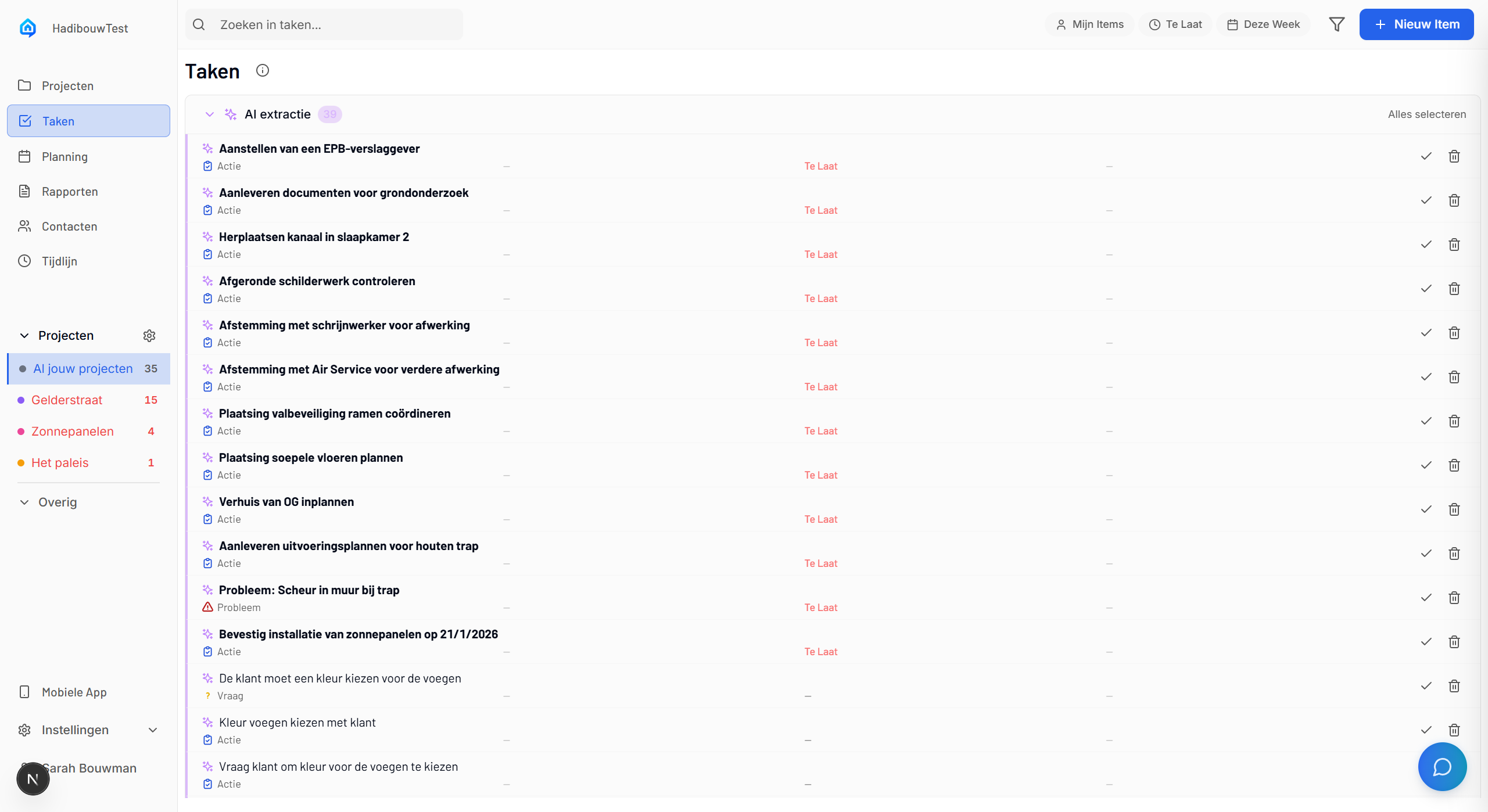
The tasks page shows all your tasks, with filters and the + New Item button in the top-right corner.
Opening the Form
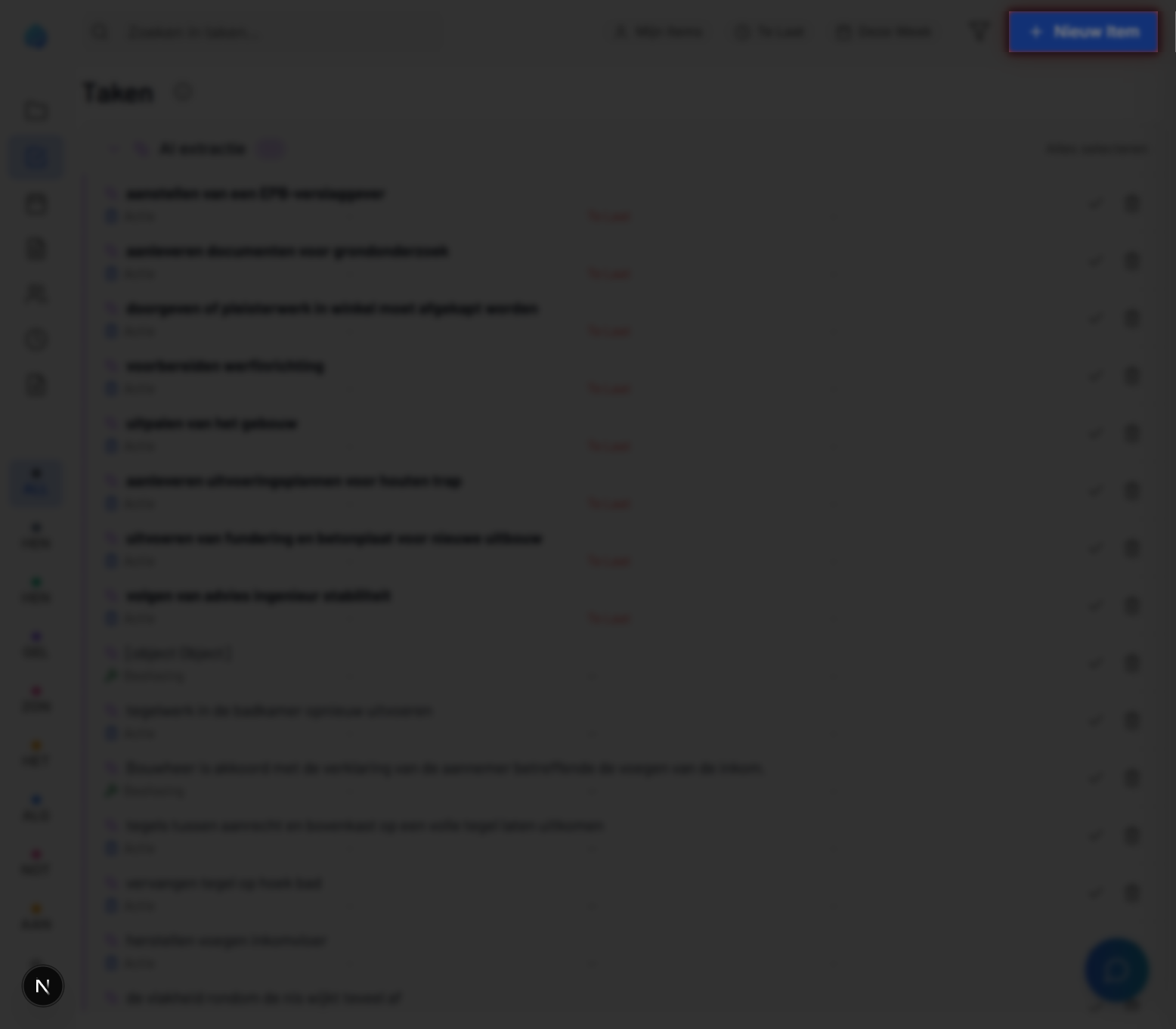
- Click Tasks in the left sidebar
- Look for the + New Item button in the top-right corner
- Click to open the creation form
The Creation Form
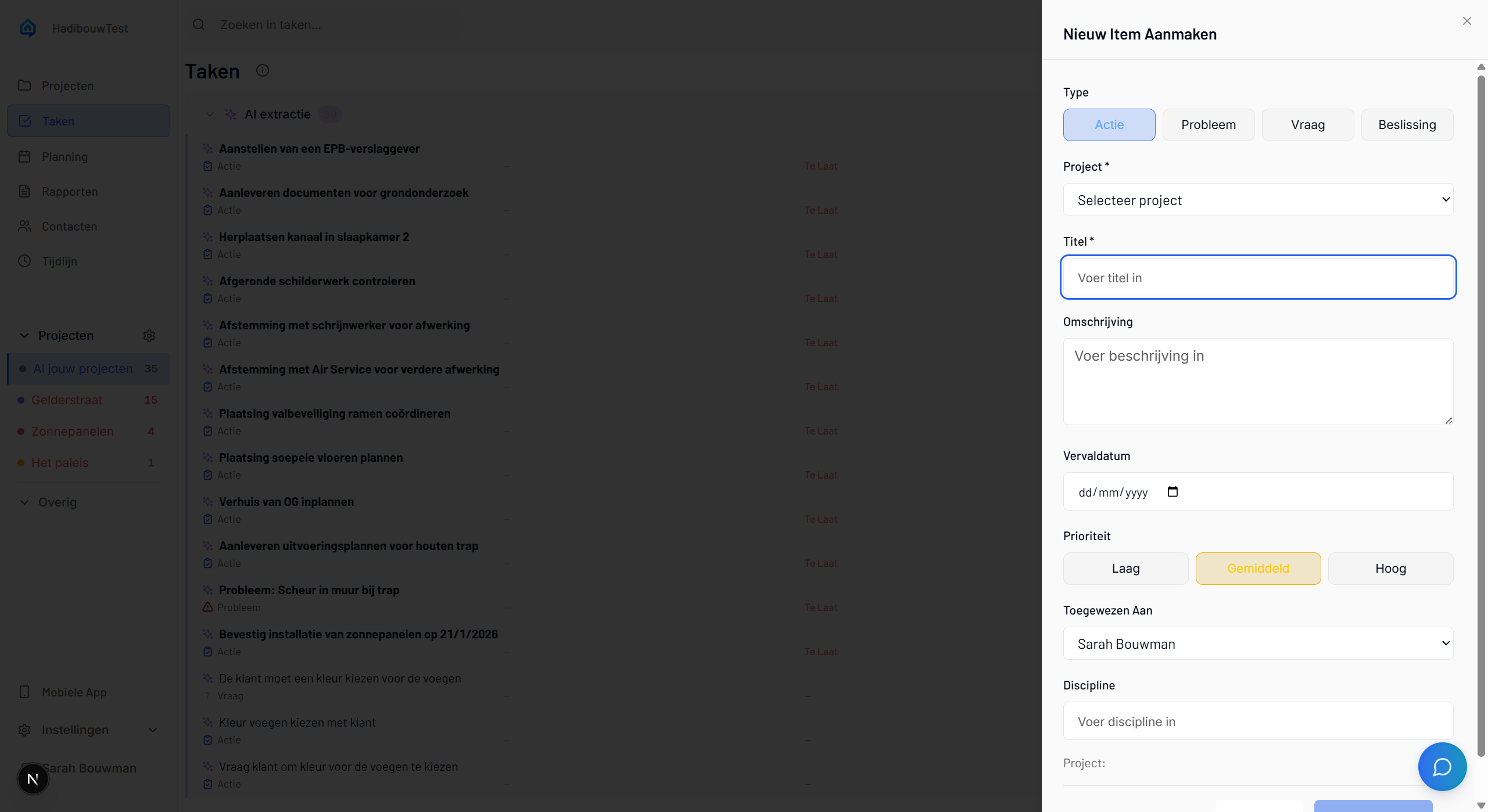
The form contains all fields needed to create a task. Required fields are marked with an asterisk (*).
Required Fields
1. Select Task Type
Click one of five buttons: - Action - Tasks that need doing - Decision - Choices that have been made - Issue - Problems that need fixing - Question - Information you need - Note - Observations to record (skips AI classification)
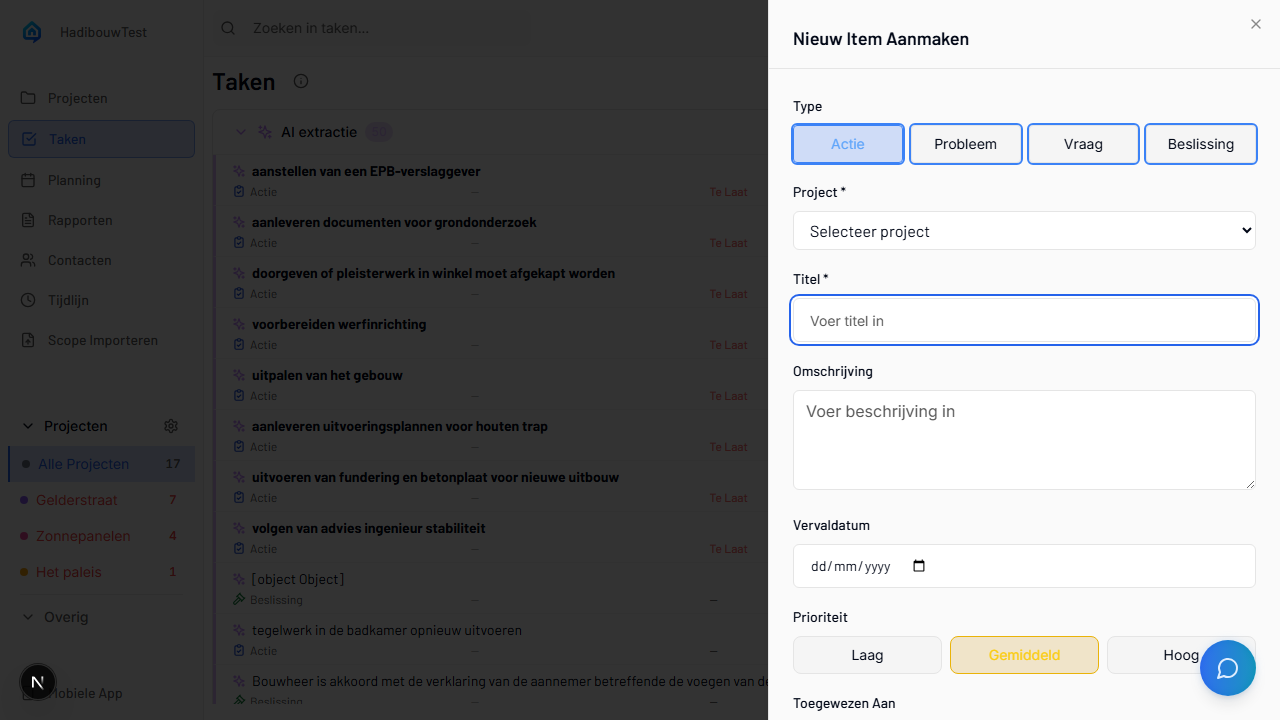
2. Select Project
Click the dropdown to choose which project this task belongs to.
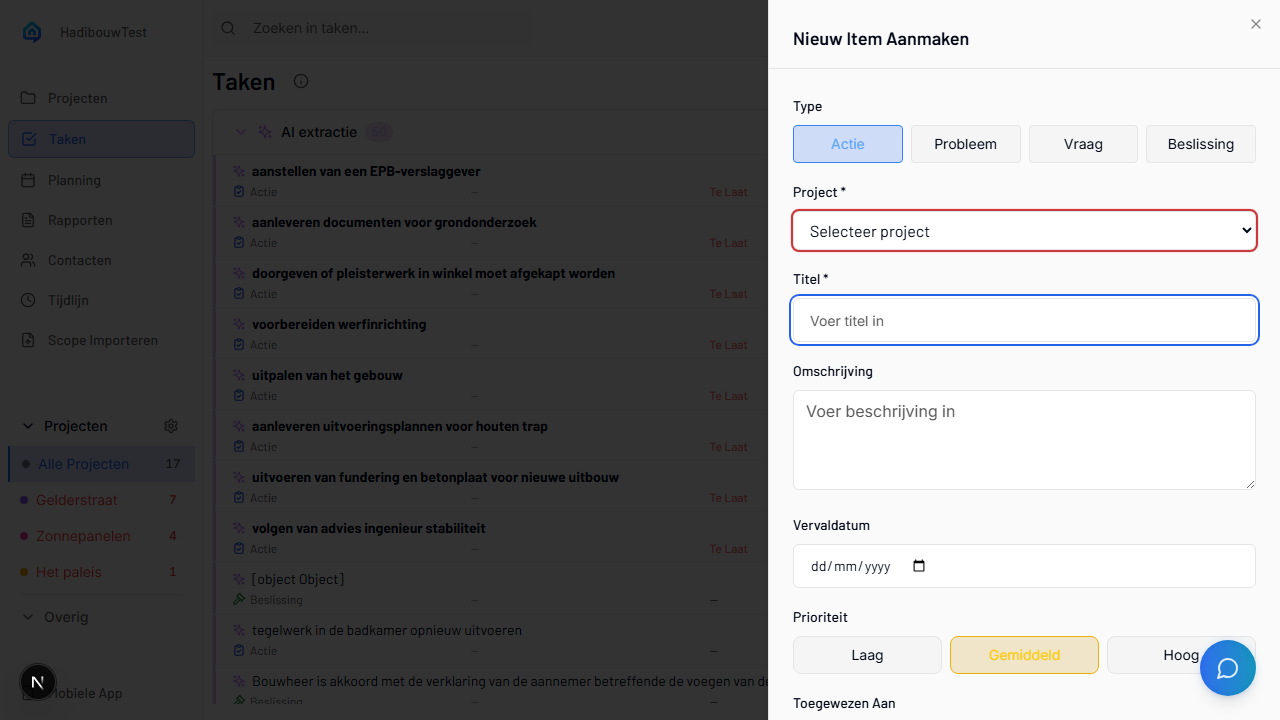
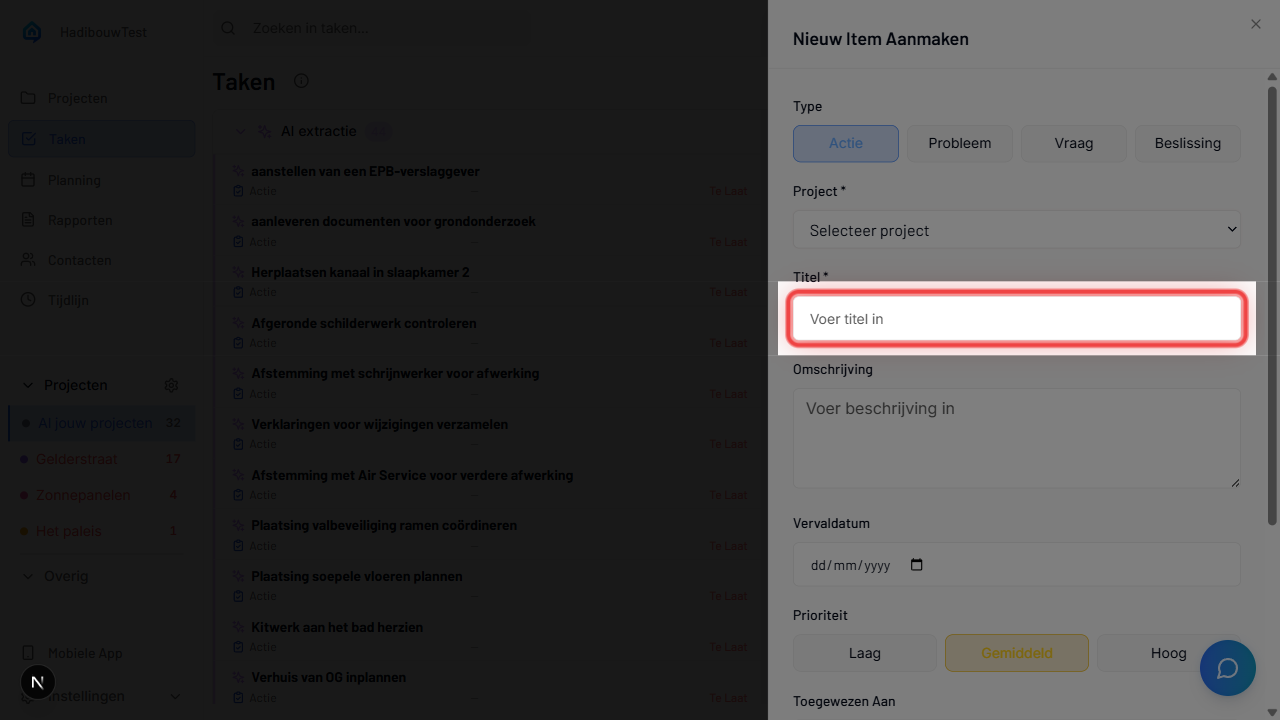
3. Enter Title
Type a clear, descriptive title. - Good: "Water leak at second floor bathroom sink" - Avoid: "Issue" or "Problem"
Optional Fields
Description: - Multi-line text area with formatting support - Add specifications, context, or references - Use bullet points for clarity
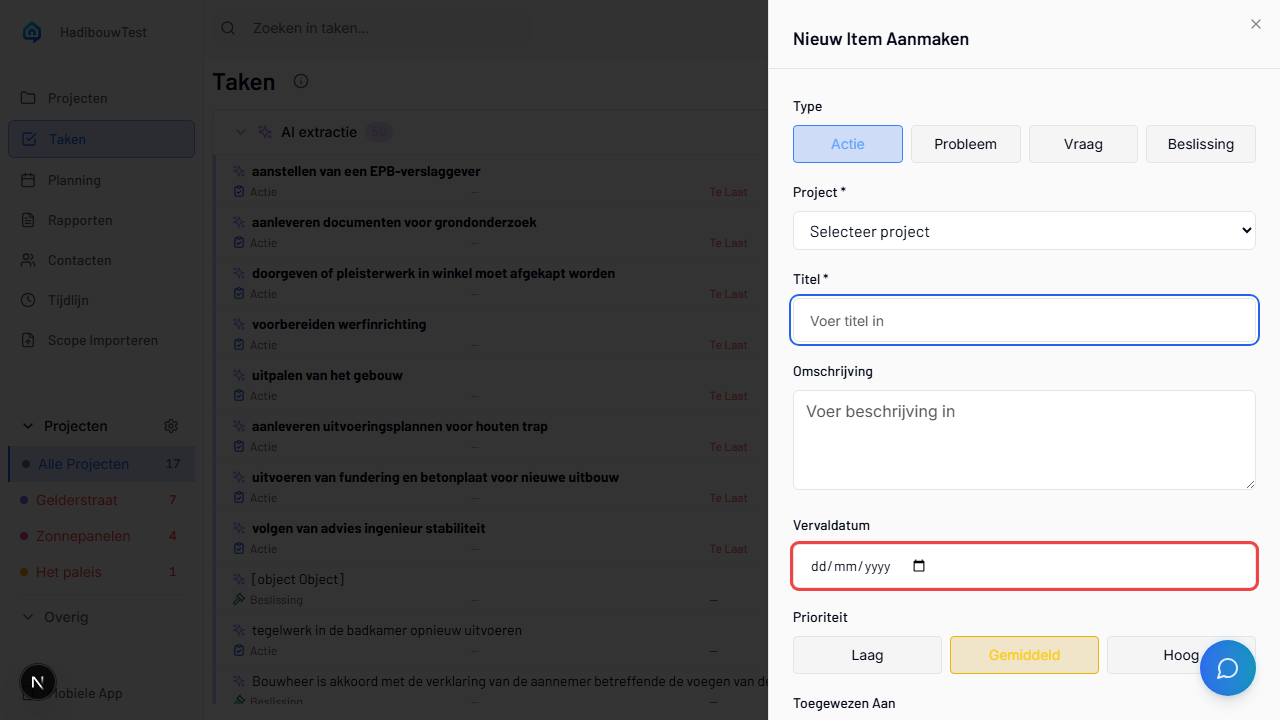
Due Date: - Click calendar picker - Or type date in YYYY-MM-DD format - Leave blank if no deadline
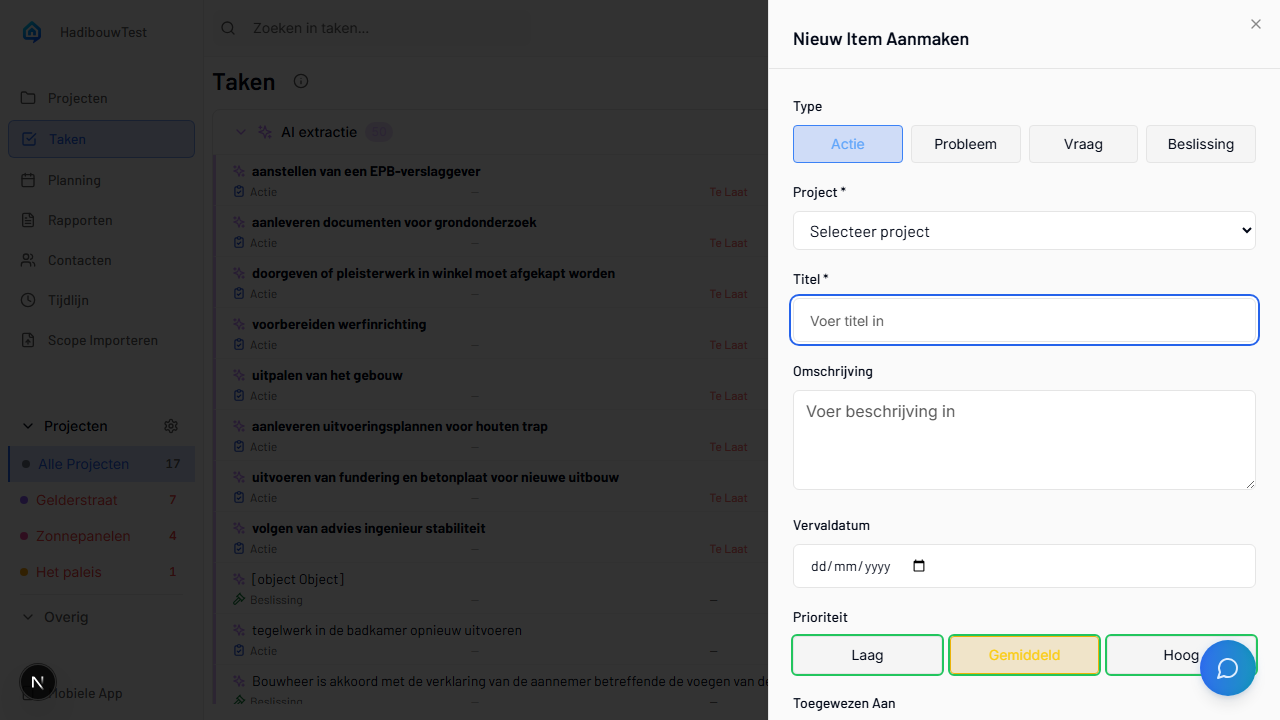
Priority: - Low - Can wait, nice-to-have - Medium - Normal workflow (default) - High - Urgent, blocks progress
Assignee: - Dropdown shows team members - Leave blank for unassigned
Discipline: - Select from your organization's managed discipline list - Examples: "Electrical", "Plumbing", "Structural" - Disciplines are configured by admins in Company Settings (with drag-and-drop reordering) - Helps route tasks to the right team and group in exports
Saving
- Review all fields
- Click Create button
- Task appears in the list immediately
Best for: Processing uploaded documents (PDFs, specifications, reports)
Time: 30 seconds per task (after AI processing)
When to use: You've uploaded project documents and want the AI to extract action tasks automatically.
Quick steps:
- Upload documents to project
- Wait for AI processing (2-5 minutes)
- Review AI-suggested tasks
- Accept, edit, or reject suggestions
Let AI extract tasks from uploaded documents.
For a complete explanation of document upload, AI processing, reviewing suggestions, and accuracy details, see the Documents Guide →.
Best for: Site visits, meetings, walkthroughs
Time: Automatic during site visit
When to use: You're on site and want to capture multiple observations with voice and photos in one go.
Quick steps:
- Tap Reports → + → Start new session
- Walk around, speak observations, take photos
- Tap Generate report
- Review AI-extracted tasks on swipe cards (approve/reject each)
Capture an entire site visit with voice, photos, and automatic task extraction.
What are sessions? Sessions bundle multiple observations from one site visit into organized, linked tasks. Walk around, speak what you see, take photos, and let AI separate it into individual action tasks.
Session Recording Details
Starting a Session
- Open the mobile app
- Tap Reports tab at bottom
- Tap + button
- Select New Session
- Optional: Give it a name like "Building A Walkthrough"
- Tap Start Recording
During the Session
Recording Indicator: - Tap Start Recording and tap again to stop - Red icon shows active recording - Timer displays duration - Keep each recording short, one task or problem per recording
During Recording:
Speak observations naturally: - "Water stain on ceiling near column B4, looks like roof leak, plumber needed" - "Electrical panel installed but not labeled yet, low priority" - "Question for architect: can we move this wall 2 meters north?"
Take photos: - Tap camera icon to take progress photos that don't need to go in the task list, only in the report - Tap the three dots next to the recording and there the camera icon, this links the photo to the resulting task - No limit on number of photos
Add text notes: - Tap text icon - Type quick notes - Useful for measurements or part numbers
Pause/Resume: - Tap pause to temporarily stop - Useful for private conversations - Tap resume to continue
Ending the Session
- Tap Generate report button
- AI begins processing immediately
- Each recording is reviewed
Reviewing Extracted Tasks
AI separates your recording into individual tasks: - Each observation becomes one task - Photos linked to relevant tasks - Type and priority auto-assigned - If the task already existed, it will be updated with the extra information or photos
For each task you can: - Accept as-is - Edit any field before saving - Reject if not needed
When done: Tap Save All to create all tasks
Session Report
After saving tasks, a session report is automatically generated.
For full details about report content, structure, and distribution, see the Reports Guide → and the Mobile App Guide →.
Draft Sessions
If you close the app before saving: - Session auto-saves as draft - Resume later from Reports tab - Drafts kept for 30 days
Best Practices
- Speak clearly but naturally
- Include location context ("near column B4")
- Mention urgency when important
- Take wide + close-up photos
- Name sessions by location or date
Best for: Single quick observations on site
Time: 15 seconds
When to use: You spot one issue and need to capture it fast.
Quick steps:
- Open the Quick Capture page (via shortcut or Tasks → + button)
- Choose input mode: Text, Voice, or Photo
- Optionally set type (or leave on "Auto" for AI classification), priority, and due date
- Save (or tap Save Another to keep capturing)
Create a single task fast when you're on site.
Quick Capture Details
Opening Quick Capture
- Open mobile app
- Tap Tasks at bottom navigation → + button, or use the Quick Capture shortcut
- Quick Capture page opens with multiple input modes
Input Modes
Text Mode: - Type a title and description - Fastest for simple tasks
Voice Mode: - Tap microphone to record - AI transcribes and creates the task title - Speak naturally: "Water leak near bathroom sink, second floor"
Photo Mode: - Take a photo or select from gallery - Take multiple photos if needed - Photos attach to the task automatically
Task Settings
Type (optional - defaults to "Auto") - Auto: AI determines the type from your input - Or manually select: Action, Decision, Issue, Question, or Note
Priority - Low/Medium/High (star selector)
Due Date - Tap calendar (defaults to +7 days)
Saving
- Tap Save to create and return
- Tap Save Another to create and immediately start a new capture
Pinning Location on Plan
If your project has floor plans: 1. Create/open the task 2. Tap View Plans tab 3. Navigate to correct floor/drawing 4. Tap location on plan 5. Task pins to that spot
No GPS Tagging
SiteWhiz doesn't use GPS coordinates. Instead, you manually pin tasks to specific locations on your uploaded floor plans for precise positioning.
Offline Capability
- Create tasks offline (saved locally)
- Upload when connection restored
- Pending indicator shows unsynchronized tasks
Best for: Tasks that need information or checklists from your documents
Time: 30 seconds
When to use: A task that needs more information or you don't want to type.
Quick steps:
- Tap Question → Say or type "Create a task for..." for example "commissioning the heating system"
- The chatbot asks you follow-up questions
- Confirm that the task can be created
- Save
Tip: If you've added the manual for that gas chain to the project or procedure documents, the task will be created with a checklist or step plan based on the document in the cloud
Exporting Tasks
Export your tasks to PDF for sharing with stakeholders, printing, or archiving.
How to export:
- Navigate to the Tasks page
- Click the Export button in the top bar
- Configure your export:
- Group by: Discipline (default), Type, Priority, Status, or Assignee
- Sort by: Due date, Created date, Priority, or Status
- Include: Checkboxes, descriptions, photos, plan images, notes space, signature line
- Language: English or Dutch
- Click Export to generate the PDF
Export for Site Meetings
Group by discipline and include checkboxes + signature line to create a professional walkthrough checklist for subcontractors.
Reviewing AI-Extracted Tasks
When tasks are extracted by AI (from voice sessions or documents), you can review them using swipe cards.
How it works:
- After AI extraction, tasks appear as review cards with a color-coded left border by type
- Each card shows: type badge, title, priority, description, confidence score, source evidence, and photos
- Swipe right (or tap approve) to accept the task
- Swipe left (or tap reject) to discard it
- Edit inline — tap title, type, priority, or description to modify directly on the card
- Add a note — tap the note button in the card footer to add a comment before saving
- Link photos — use the photo button to attach photos to the task
- Pin location — use the location button to pin the task to a floor plan
Card details: - Confidence score (0-100%) indicates how sure the AI is about the extraction - Evidence section shows the source text or transcription that the task was extracted from - Photos attached during capture are shown as thumbnails on the card - Footer bar provides quick-access buttons for location, photos, and notes
After Creating a Task
Once created, tasks:
- Sync immediately - Visible on all devices (desktop + mobile)
- Appear in timeline - Tracked in project activity
- Become searchable - AI Assistant can answer questions about them
- Link to sources - Connect to documents, photos, sessions
- Show photo thumbnails - Tasks with photos display a thumbnail preview directly in the list view
- Show related tasks - Tasks related by topic or explicit links are displayed in the task detail view
Editing tasks (mobile): On the mobile app, you can edit tasks inline by tapping on the title or description. You can also:
- Change priority — tap the priority indicator to cycle through low, medium, high
- Add comments — use the comments section at the bottom of the task detail
- Attach photos — tap "Add Photo" to take a new photo or choose from gallery
- Pin to plan — tap "View Plans" to pin the task to a floor plan location
Troubleshooting
For detailed troubleshooting for tasks, including session recording, AI extraction, photos and more, see the Troubleshooting Guide →.
Next Steps
Now that you can create tasks, explore:
- Projects Guide → - Organize tasks within projects
- AI Assistant → - Create tasks via chat
- Documents → - Extract tasks from documents automatically
- Mobile App → - Create tasks on-site with voice and photos